On DAT or any page, click a broker's number, pick which company line to call from, and your Polycom desk phone rings it — hands-free. Setup is the easiest you'll ever do: it finds your phone and configures it by itself. Try it free — your first 5 calls are on us. Pay only once you've heard it ring.
Includes Diversimail · diversimail.com → One price for both tools · Windows · Polycom VVX desk phones (see which phones) · one computer per subscription · cancel anytimeNo IP hunting. No phone menus. No IT guy. Three steps, once.
Add CallByClick from the Chrome Web Store, then double-click the small Windows helper once. It registers itself and sits quietly — it's what talks to your phone.
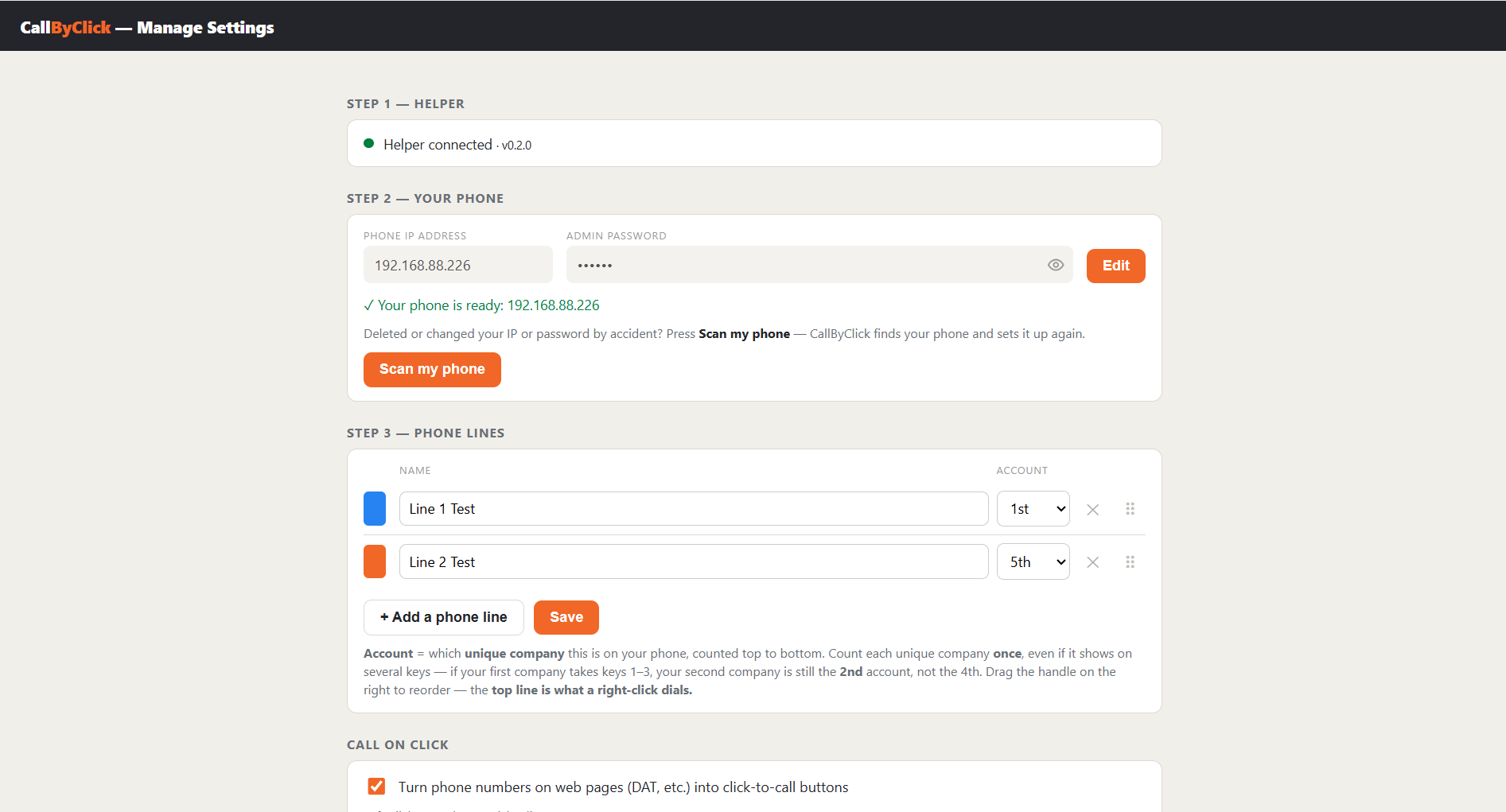
Open settings. The helper finds every Polycom on your office network and lists them by extension. Click yours. It changes the factory password and turns on the phone's API for you, shows you the new password, and remembers it. Then add a line for each company on your phone.
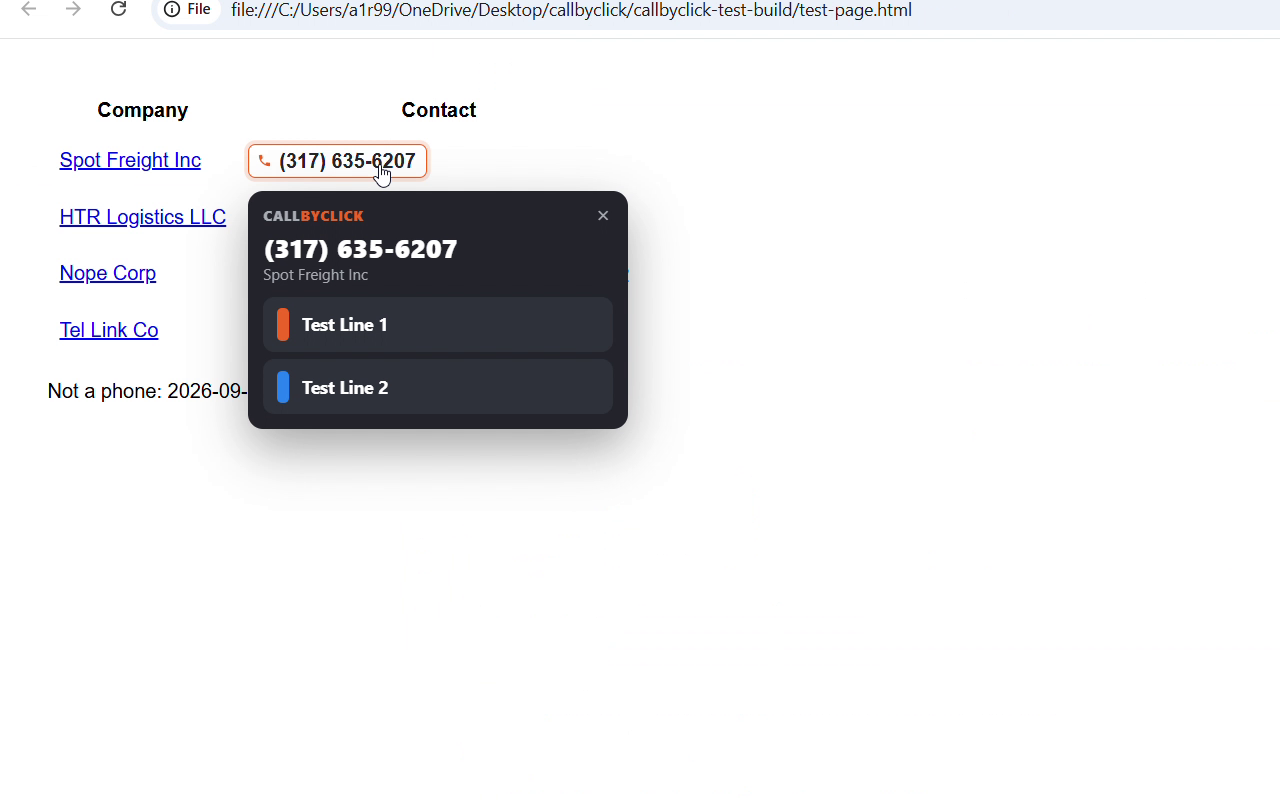
Every phone number on the page becomes a button. Left-click it, choose the line — your desk phone goes off-hook and dials. Right-click and it dials instantly from your first line.


Three things, about five minutes — and you don't pay until you've seen it work.
Install the extension and the helper (steps 2 and 3), let it set up your phone, and make 5 real calls free. No card, no email. When you've heard your phone ring, subscribe: $12.99/mo, includes Diversimail, one computer, cancel anytime. Remember the email you use — that's how you activate.
Subscribe — $12.99/moFrom the Chrome Web Store, like any extension. Works in Chrome, Edge, Brave and Opera.
Add to ChromeA 6 MB Windows program. Double-click it once — it installs itself and registers with your browser. It's what lets the extension reach your desk phone.
⬇ Download cbc-helper.exev0.3.0 · Windows 10/11 · free
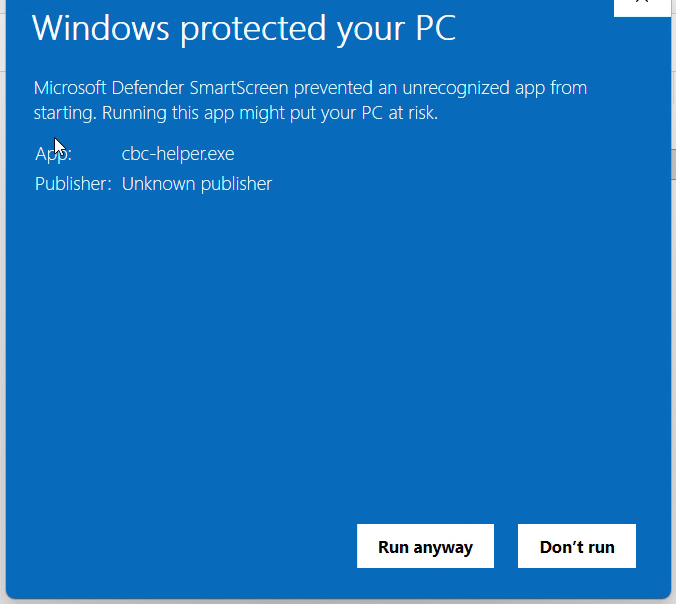
The helper is a brand-new program from a small studio, and it isn't code-signed yet, so Windows Defender SmartScreen shows "Windows protected your PC" the first time you run it. That's Windows being cautious about anything it hasn't seen before — not a problem with the file.
Click More info, then Run anyway. That's it. (It's the exact moment you can see in the video above.) The helper only ever talks to your phone on your own office network; the privacy policy spells out everything it does.
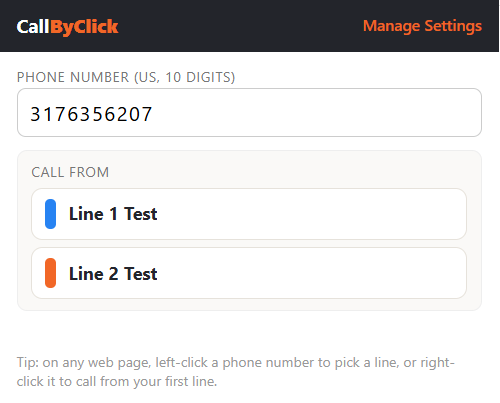
Then open the extension → Manage Settings → click your phone → add your lines → make your 5 free calls. Liked it? Subscribe and activate with the email you paid with. Done.
Right-click any number and it dials immediately from your first line — no card, one click. Keep your main company first and most calls are a single click.
Talks directly to Polycom VVX desk phones over your office network using the phone's built-in REST API — every VVX model, including older firmware (tested on a VVX 410 running 5.5.1). No new phone system, no phone company in the middle. Full list →
The last number you dialed — from a page or the popup — stays in the toolbar popup until you clear it. Call them back even after the load is gone.
Cleared your settings by accident? Press Scan my phone — it finds the phone again and puts the password back. Phone got factory-reset? It sets it up again. You never have to remember an IP.
Numbers like (757) 432-3357 x2000 are recognized — the extension is shown on the card so you never lose it.
Up to 12 lines, each color-coded, each pointing at the right account on your phone. Drag to reorder — the top one is your right-click line.
The helper talks to your Polycom on your own office network; the extension only turns numbers on the page into buttons. Who you call, when, from which line — none of it leaves your desk. The only thing our license service ever receives is the email you activate with, to confirm your subscription. Read the privacy policy →
CallByClick uses the REST API built into Polycom's UC Software. If your desk phone has that, it works. Here's the honest breakdown — we've tested one family ourselves and won't pretend otherwise.
UC Software 5.4 or newer (Polycom documents the REST API from 5.8.0; we've verified it on a VVX 410 running 5.5.1). Everything is set up for you automatically. Your phone's software is under Settings → Status → Platform on the phone.
These run the same REST API (UC Software / Poly Voice Software), so dialing works the same way — but we haven't tested them. If automatic setup can't drive their web page, you turn on the REST API by hand once (Settings → Applications → REST API) and type the admin password in settings. Your 5 free calls tell you before you pay.
These phones run older or different software with no REST API, so there's nothing for CallByClick to talk to. Teams/Zoom-mode phones hide the API behind the Teams/Zoom app.
One price. Both products. Try before you pay.
By subscribing you agree to the Terms of Service and Privacy Policy. Payments handled securely by Lemon Squeezy. Activate in the extension with the email you paid with — no license keys to keep track of. Moving computers? Deactivate on the old one, activate on the new one.
Yes — that's the point. Install the extension and helper, let it set up your phone, and make 5 real calls free, no card and no email. You'll know it works with your phone before you spend a cent. After the 5 calls it asks you to subscribe.
Our other tool for the same desk: write one email to a broker and send it from every company you run, each with its own signature, in one click. Same subscription, same email to activate — diversimail.com.
Every Polycom VVX desk phone (101 through 1500) on UC Software 5.4 or newer — that covers most of what's on dispatch desks today; we test on a VVX 410. Poly Trio, CCX and Edge E share the same API and should work, though we haven't tested them. SoundPoint, SoundStation and Poly Edge B have no API and won't work. The phone needs its REST API on and a non-default admin password; the helper does both for you when you click your phone in settings. If your phone already has its own admin password, you type it once. Full list above.
No. CallByClick talks to the phone itself, on your own office network. Your phone service keeps working exactly as before — the phone just gets told what to dial.
The helper isn't code-signed yet, so SmartScreen warns about it like any new program. Click More info → Run anyway. See the explanation above.
It's shown in settings (click the eye icon) and remembered by the helper, so you never need to know it. If you ever lose it, press Scan my phone and it's restored. Please don't change it on the phone itself — if you do, you'll just type the new one into settings once.
Yes, for now — the helper is a Windows program. The extension works in Chrome, Edge, Brave and Opera.
One computer per subscription. To move, click Deactivate in settings on the old computer, then activate on the new one with the same email. If the old computer is gone, email us and we'll release it.
No. It only tells the phone which number to dial. The conversation is between your phone and the person you called, like any other call.